
One of the most common reasons participants call the PWGA is because they need information related to their health claims – what we call CLAIMS STATUS. Until now, you couldn’t check Claims Status online. But in response to multiple requests, we have enhanced the information available to participants in My Plans and the PWGA App. You can now check Claims Status any time you want – and you will always receive the most up-to-date information.
Getting Started
The first thing to do is to log into MyPlans through our website, just click on the link on the opening page:

Viewing Claim Status
If you use MyPlans through the website, you will be deposited on the main page. Just click on Health and then Claims and you will be presented with a list that sets forth the status of all your claims:
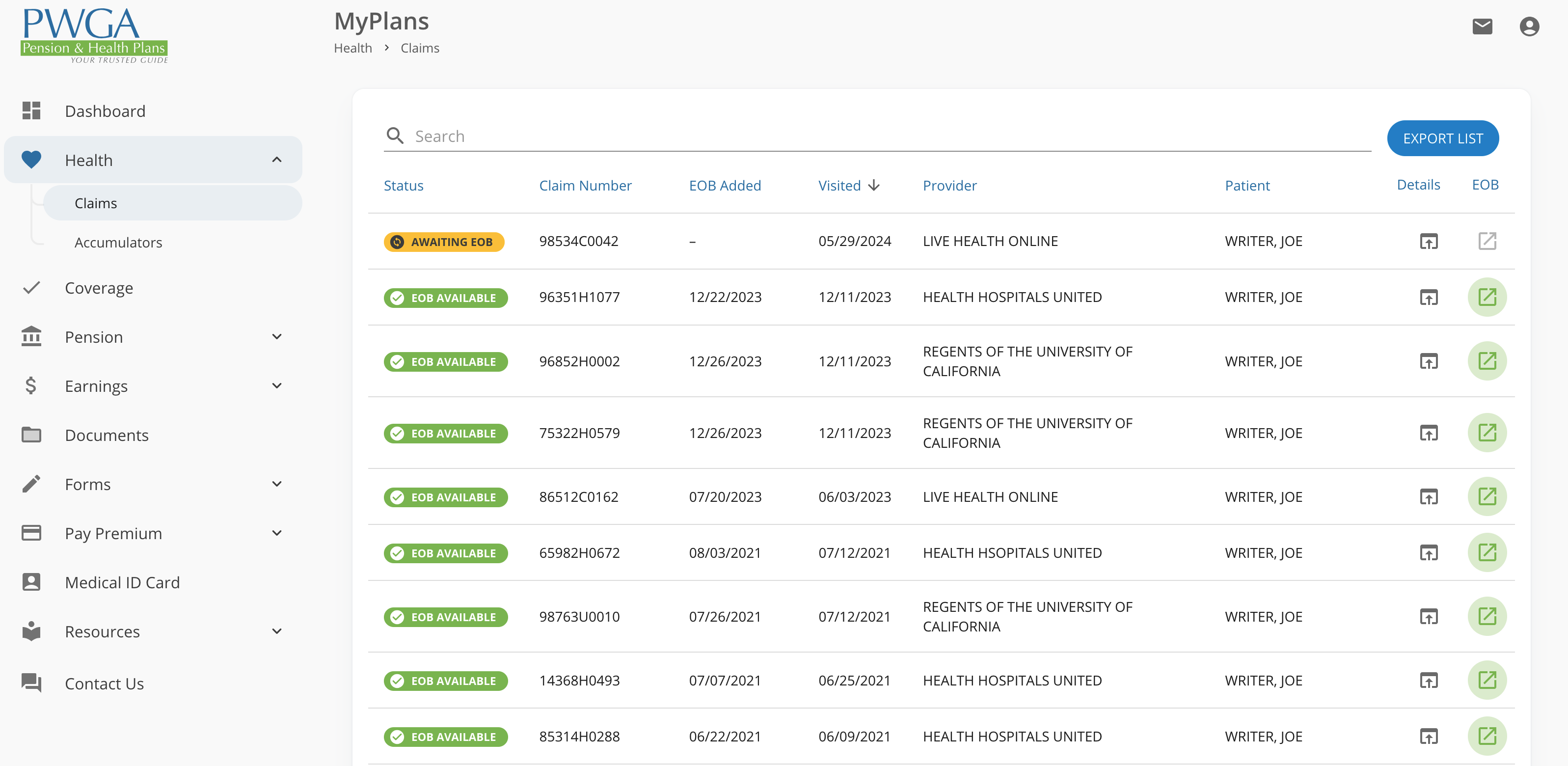
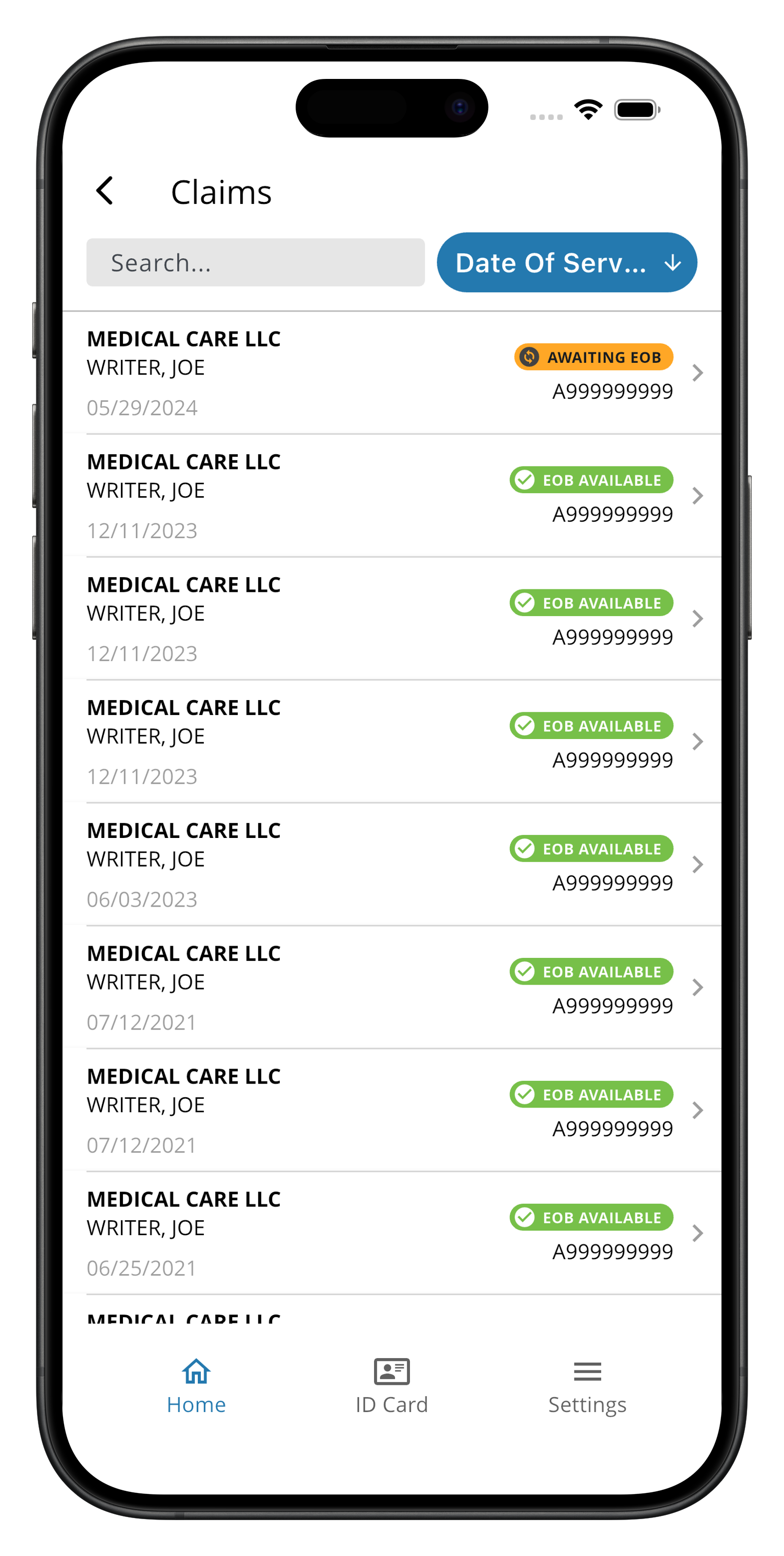
The Claims Status are highlighted in different colors, each delineating where the claim is in the processing cycle.
What Do the Claims Status Names Mean
The PWGA has four different claims status designations.
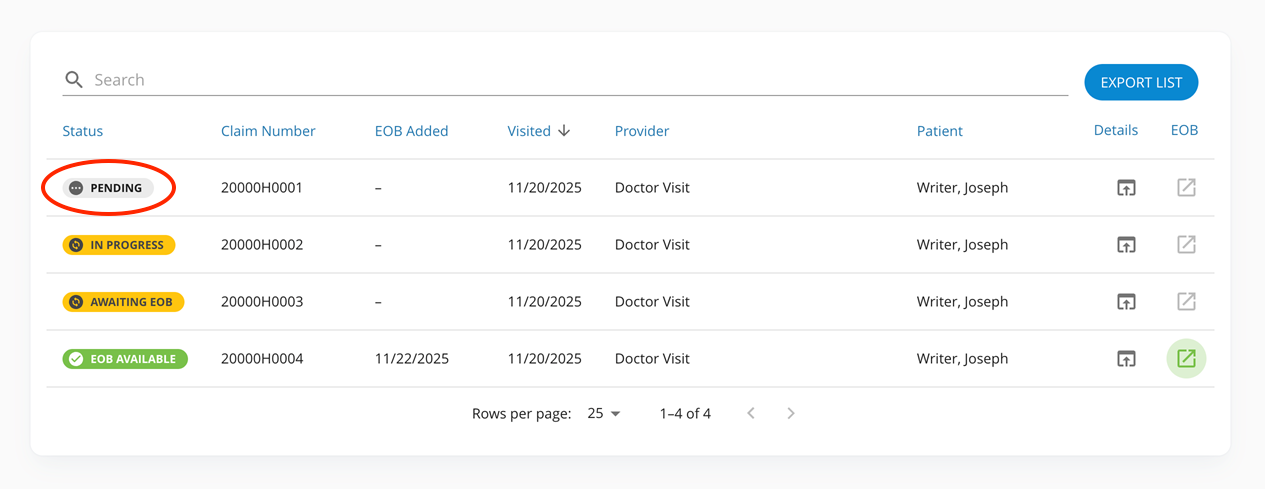
When you see “PENDING”, this means that the claim has been received, but that processing has not yet begun; the claim could be paid or denied.
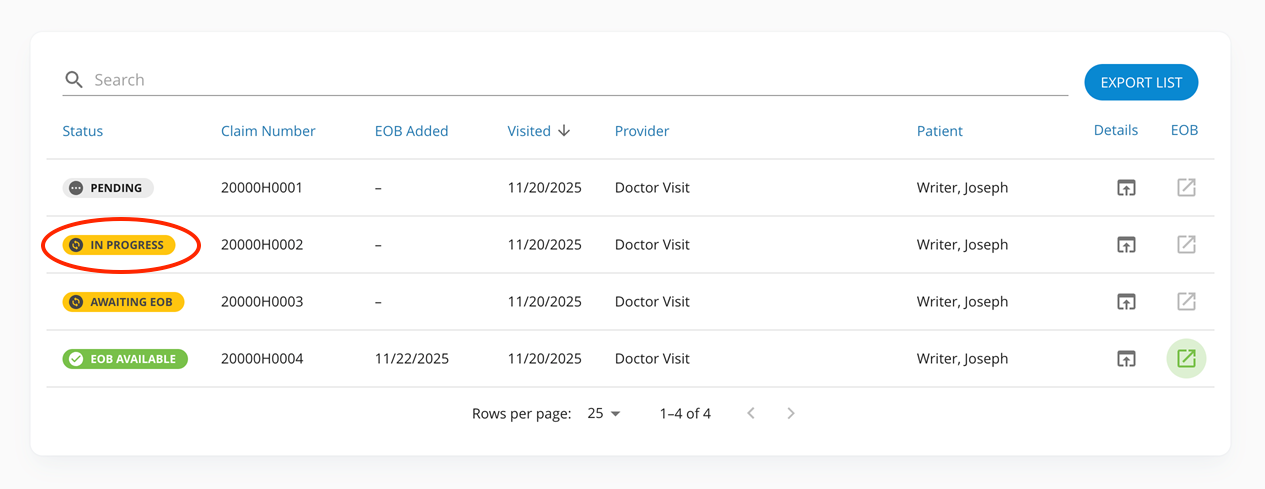
“IN PROGRESS” means that the claim is in the data entry phase, or that pricing has been requested.
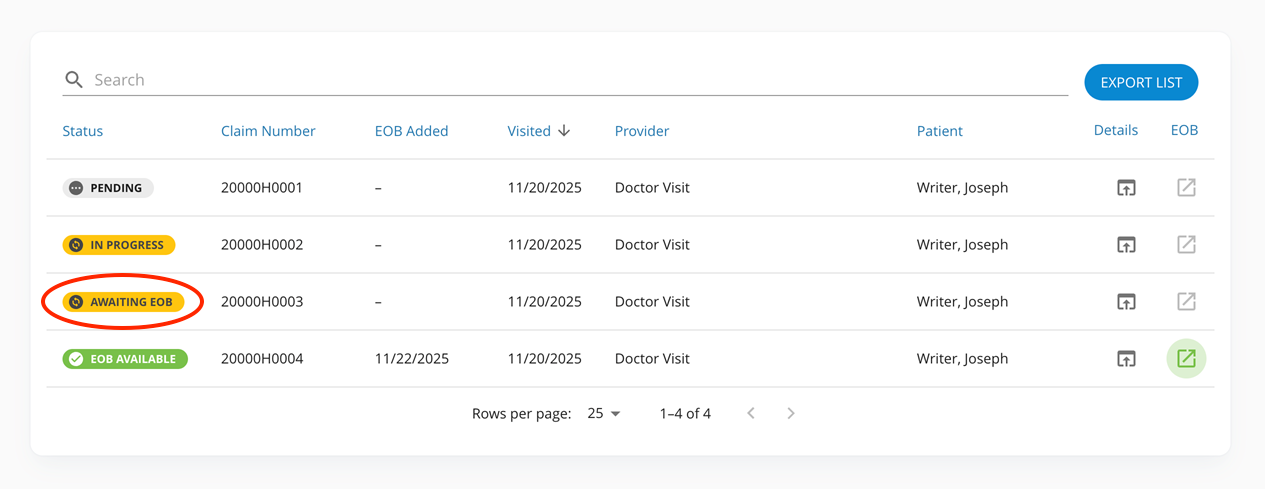
“AWAITING EOB” is used when a claim has been processed, but the EOB has yet to be generated.

The final category is “EOB AVAILABLE”. This status means that the claim has been fully processed and an EOB has been generated. At this point, you can review the EOB in OneView for the details on claim payment or denial.
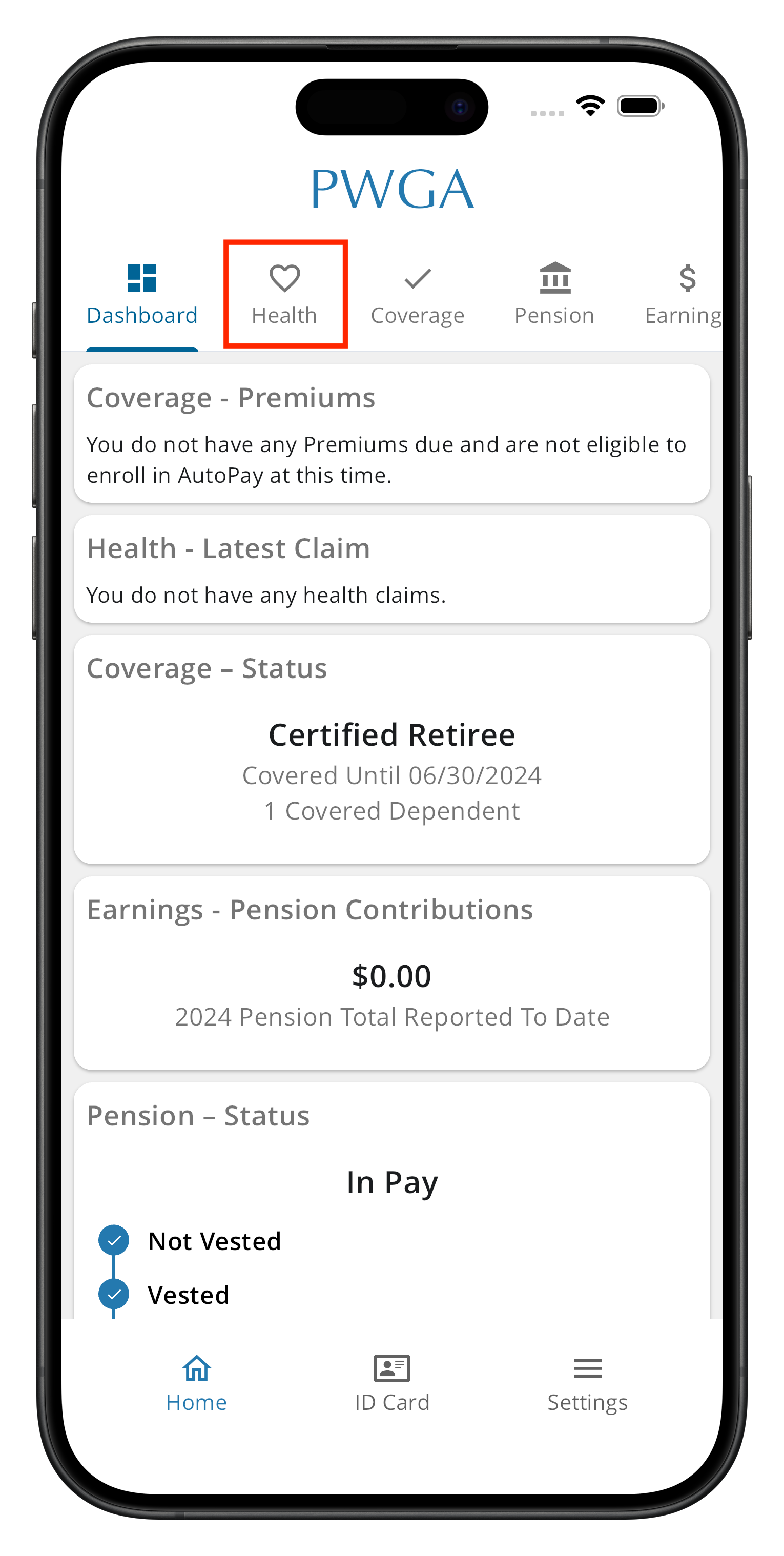
You can also get this same information by using the PWGA App. This is what the opening screen looks like. You will see several choices at the top of the screen. Just click on HEALTH and then CLAIMS.
You will then be taken to the CLAIMS page with the same categories as were on the MyPlans screen:
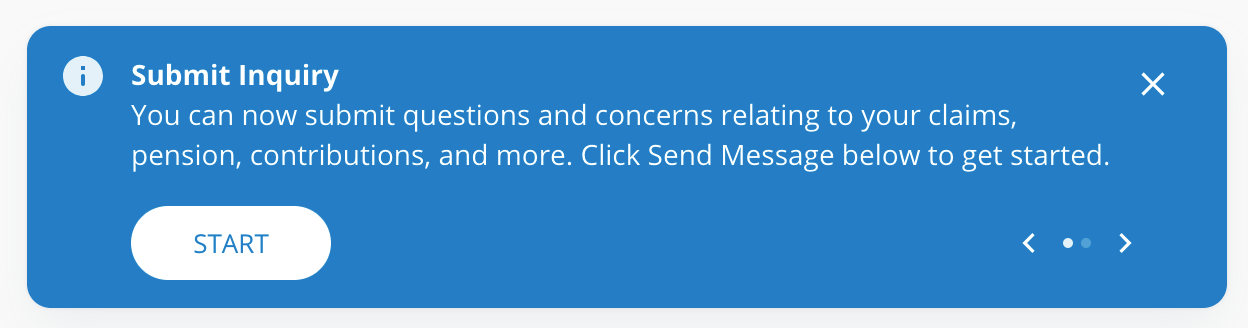
If you have any questions or concerns about one or more claims, simply click on “Submit Inquiry” at the bottom of the screen.
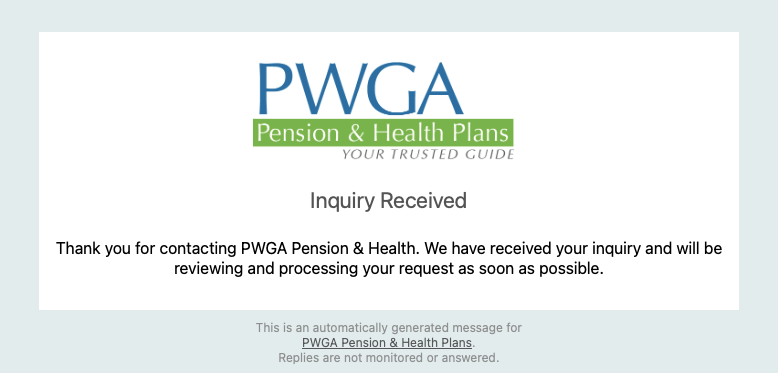
Once you fill out the details of your inquiry, you will receive a confirming email:
Getting Started If You Don’t Already Have The App
The first thing to do is get the app. It is available for both the Android and Apple operating systems. Just click on either of the links below and you can register the app for your account.


You can find a guide for how to set up the app HERE.
Conclusion
Now, for the first time, you have the ability to check the claims status of any medical services you have received, and if you have questions, make an inquiry. Any time of the day or night you can see your claims, make inquiries, and the claims are updated every day so that you have access to the most up-to-date status. No more waiting on hold for a reply. You don’t have to call the Health Plan or physically visit. A few keystrokes and you will have all the information available.